

In this post, I will cover the Hive External and Managed table concept. I have created a video for the same, you can use the YouTube link Hive Tables to access the video.
Hive Tables
Hive provides the feasibility to store the data in two types of tables known as the Managed and External Tables. Depending upon the requirement Hive table type can be selected.
Managed Tables
- Managed tables are also called as Hive Internal Tables. When we drop a Hive Managed table data also gets deleted.
- The managed table can be created at the Hive Database location (Default) or any HDFS location.
External Tables
- External tables are those which when deleted only the data structure gets deleted from the metadata and the data remains safe.
- External tables can be created at the Hive database location or any HDFS location.
- When the external table is deleted, files containing the data remains at the HDFS location.
- To create the external tables in Hive user need to use “external” keyword.
When to use Managed/External Tables
- Depending upon the requirement, the user can decide to go with the external tables or the managed tables.
- If the table is full refresh type or used for the temporary data processing, can go with the managed table.
- If the data is crucial, or incremental load type can go with the external table.
- If you are planning to use the ACID properties in your project then you need to go with the managed table. (I will share this in detail in another post on Hive Acid Properties)
To learn more on this, let us create a few tables in Hive, load the data to the tables and drop the tables. Let us understand what happens to the data when we drop an external and managed table. To understand this, I have taken four use cases two of the external table and two for the managed table.
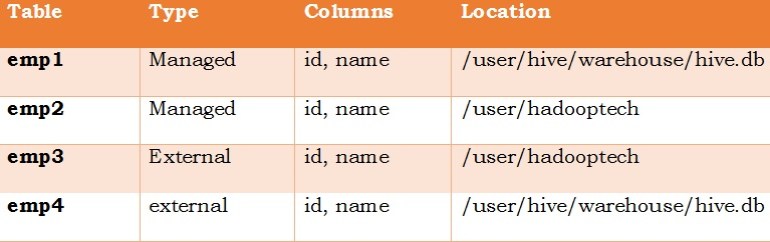
Step1:- Create Tables
Step1.1:- Managed Table in Hive Database Location
create table if not exists hive.emp1(
id int, name string)
row format delimited fields terminated by ‘^’;
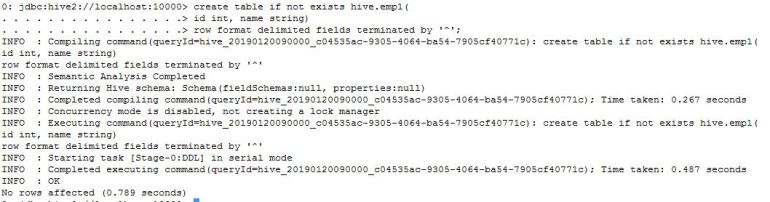
Step1.2:- Managed table in user-defined HDFS location
create table if not exists hive.emp2(
id int, name string)
row format delimited fields terminated by ‘^’
location ‘/user/hadooptech/emp2’;
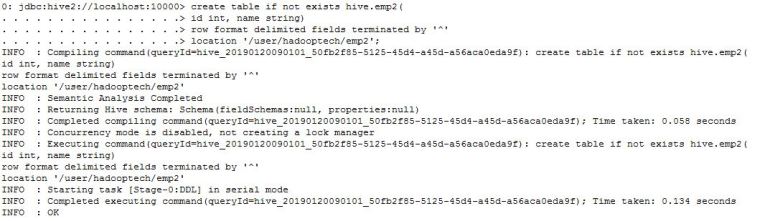
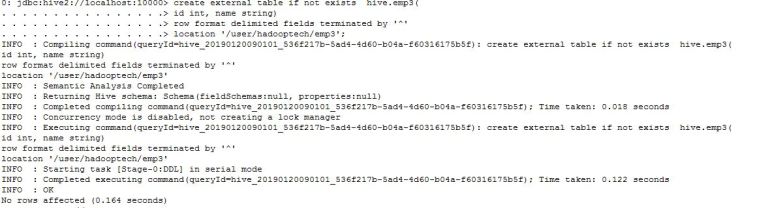
Step1.3:- External table in user-defined HDFS location
create external table if not exists hive.emp3(
id int, name string)
row format delimited fields terminated by ‘^’
location ‘/user/hadooptech/emp3’;
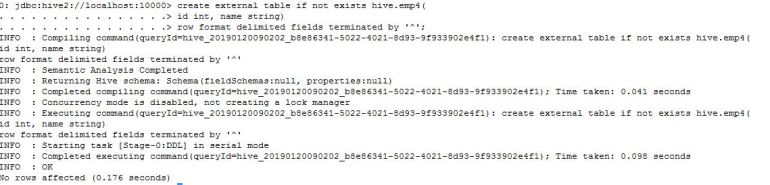
Step1.4:- External Table in Hive Database Location
create external table if not exists hive.emp4(
id int, name string)
row format delimited fields terminated by ‘^’;
Insert Data into tables
Let’s insert a few records into the tables
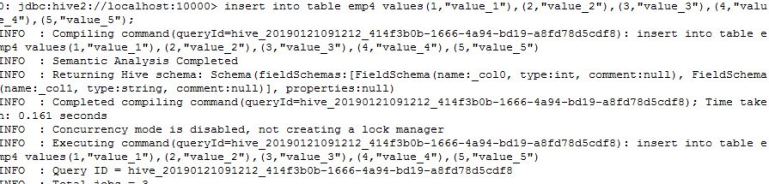
Step2.1:- Insert into Managed Table in Hive Database Location
insert into table emp1 values(1,”value_1″),(2,”value_2″),(3,”value_3″),(4,”value_4″),(5,”value_5″);

Step2.2:- Insert into a Managed table in user-defined HDFS location
insert into table emp2 values(1,”value_1″),(2,”value_2″),(3,”value_3″),(4,”value_4″),(5,”value_5″);

Step2.3:- Insert into External table in user-defined HDFS location
insert into table emp3 values(1,”value_1″),(2,”value_2″),(3,”value_3″),(4,”value_4″),(5,”value_5″);

Step2.4:- Insert into External Table in Hive Database Location
insert into table emp4 values(1,”value_1″),(2,”value_2″),(3,”value_3″),(4,”value_4″),(5,”value_5″);
Select Data from Hive Tables and HDFS location
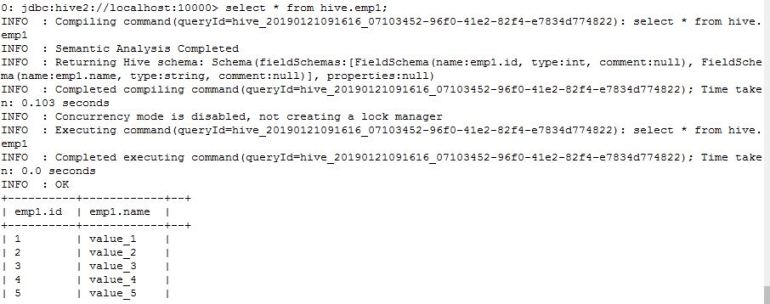
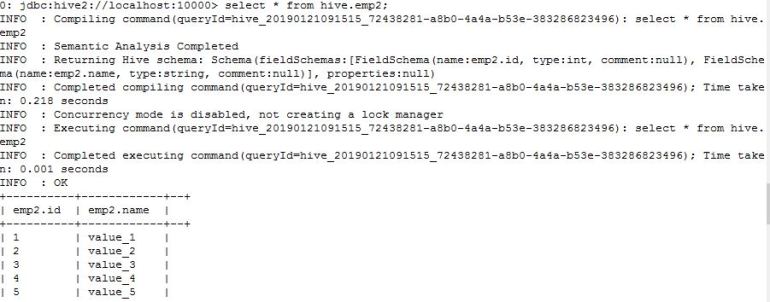
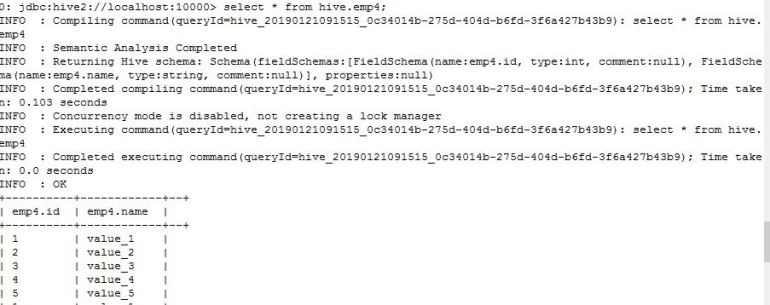
We have inserted the sample data in the Managed and the external tables, let’s select the data from the tables as well as check the files at the HDFS location. It will help in understanding the concept of how Hive tables store the data in the HDFS format.
Step3.1.1:- Select * from Managed table in Hive Database Location
select * from hive.emp1;
Step3.1.2:- List data in HDFS for Managed Table in Hive Database Location
hadoop fs -ls /user/hive/warehouse/hive.db/emp1

Step3.2.1:- Select * from Managed Table in user-defined HDFS
Location
select * from hive.emp2;
Step3.2.2:- List data in HDFS for Managed table in user-defined HDFS location
hadoop fs -ls /user/hadooptech/emp2

Step3.3.1:- Select * from External Table in user-defined HDFS Location
select * from hive.emp3;

Step3.3.2:- List data in HDFS for External table in user-defined HDFS location
hadoop fs -ls /user/hadooptech/emp3

Step3.4.1:- Select * from External Table in Hive Database Location
select * from hive.emp4;
Step3.4.2:- List data in HDFS for External table in Hive Database location
hadoop fs -ls /user/hive/warehouse/hive.db/emp4

We have created managed and external tables by giving the HDFS location and without specifying the HDFS location. We were able to select the data in both the conditions. Which proves that we can create the tables with and without providing the HDFS location.
Drop External and Managed Tables
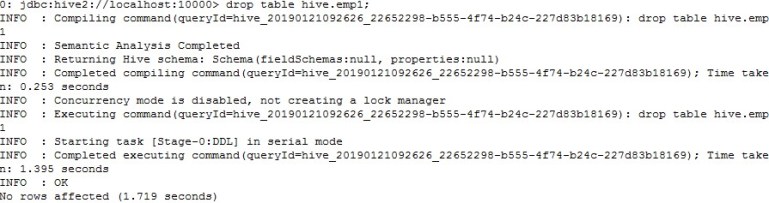
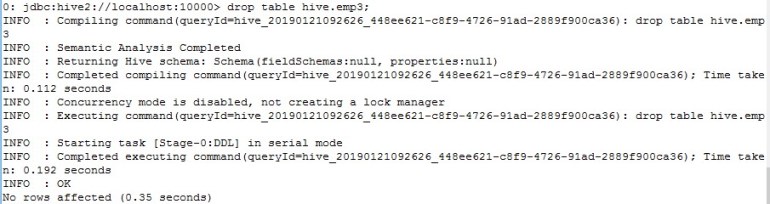
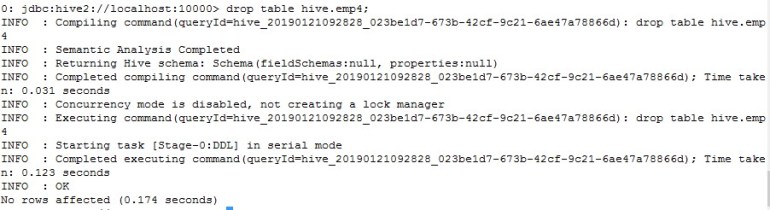
Next step is to drop the tables, to check the impact on the data. In case of the managed tables, data will be deleted and in case of the external tables, data will be available on the HDFS location.
Step4.1:- Drop Managed Table in Hive Database Location
drop table hive.emp1;
Step4.2:- Drop Managed table in user-defined HDFS location
drop table hive.emp2;

Step4.3:- Drop External table in user-defined HDFS location
drop table hive.emp3;
Step4.4:- Drop External Table in Hive Database Location
drop table hive.emp4;
Select Data from Hive Tables and HDFS location after dropping tables
The last step will be checking the data in the Hive tables as well as at HDFS location. We have dropped all the tables, hive must throw an error of table does not exist for the four scenarios. While listing the files at HDFS, it should list the files for the external tables (emp3 and emp4) same as we listed in step3, but for the managed tables (emp1 and emp2) it must show no such file or directory.
Step5.1.1:- Select * from Managed table in Hive Database Location
select * from hive.emp1;

Step5.1.2:- List data in HDFS for Managed Table in Hive Database Location
hadoop fs -ls /user/hive/warehouse/hive.db/emp1

Step5.2.1:- Select * from Managed Table in user-defined HDFS
Location
select * from hive.emp2;

Step5.2.2:- List data in HDFS for Managed table in user-defined HDFS location
hadoop fs -ls /user/hadooptech/emp2

Step5.3.1:- Select * from External Table in user-defined HDFS Location
select * from hive.emp3;

Step5.3.2:- List data in HDFS for External table in user-defined HDFS location
hadoop fs -ls /user/hadooptech/emp3

Step5.4.1:- Select * from External Table in Hive Database Location
select * from hive.emp4;

Step5.4.2:- List data in HDFS for External table in Hive Database location
hadoop fs -ls /user/hive/warehouse/hive.db/emp4

To summarize the Hive table concept, External tables are those which keeps the data even the tables are dropped whereas the Managed tables are those which when dropped data will also be deleted. External tables can be created with or without giving the HDFS location when the location is provided the tables will be created at the given location otherwise on the Hive database location, the only important factor to keep in mind is giving external keyword.
kindly, share your comments and feedback for the post. Also, Subscribe the email notification of the blog and the YouTube Channel Hadoop Tech
 hadooptech