
To run the Apache Spark locally in the Desktop/Laptop, spark can be installed on the Windows system to run the Spark jobs or to perform the Spark operations. It can be installed on both 32-bit as well as 64-bit system. There are a few pre-requisite which needs to be met before running a Spark job in the window system. Download the latest version of the Apache Spark, Scala(sbt) and Winutils. Winutils need to set the Hadoop home to run the spark operations. Follow the below steps and Spark will start running on your system.
Download Java JDK
Download the latest version of the Java from the site:- java_download
Download Apache Spark Latest version
Go to the site:- spark_download
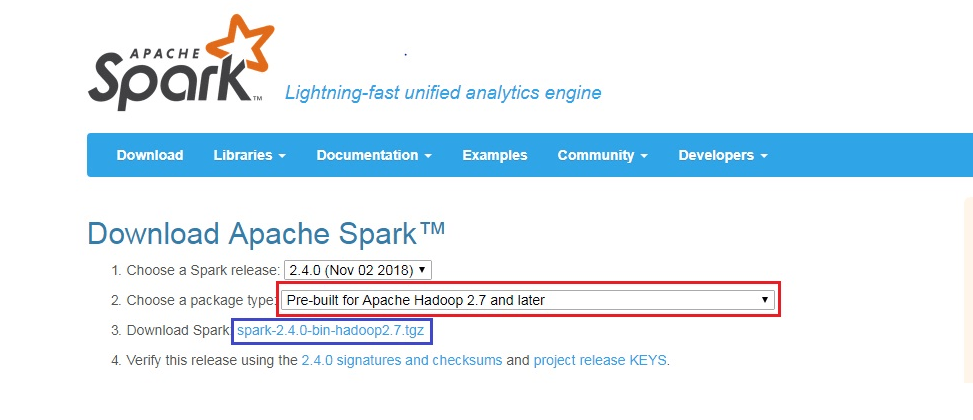
- Choose the package Pre-built for Apache Hadoop 2.7 and later as highlighted in the red in the above image.
- Click on the link highlighted in the blue to go to the mirror file page to download the Apache Spark
- Click on the mirror image or link Spark-2.4 to download the Spark 2.4 for the windows.
Download Scala SBT
To run the spark on top the scala, need to install Scala sbt in the window. Use the below steps to download the Scala sbt.
- Go to the link:- scala_sbt_download

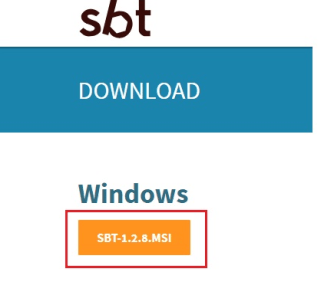
- Click on SBT_<version>.MSI to download for the window as shown in the image for the version SBT_1.2.8.MSI
Download Winutils
Search for the winutils and download the latest version winutils.exe file compatible for the spark version you are using WinUtils
Once all the software is downloaded, the next step is to install the Spark, scala, and winutils.
Install Java
If Java is not installed onto your system then follow below steps else start from the Install Spark step
- Install the java jdk by double-clicking on the downloaded exe file.
- Once the jdk is installed, go to the folder “C:\Program Files\Java” and check for the JDK and JRE folders.
- Next step will be setting up the JAVA _HOME path. Go to the Advance System setting and click on the Environment variables.
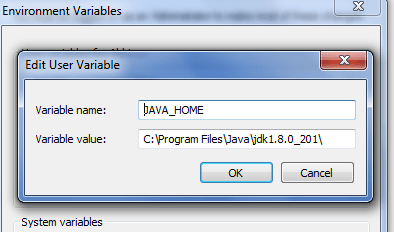
- Create a new variable JAVA_HOME and set the JDK path as shown in the below image
-
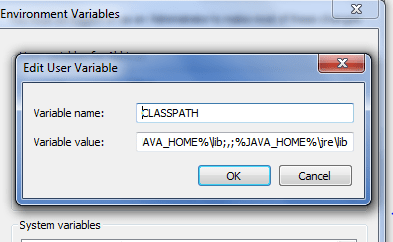
Add the JAVA_HOME to the CLASSPATH variable as JAVA_HOME%\lib;,;%JAVA_HOME%\jre\lib
Install SBT
Go to the download folder, where sbt_<version>.exe file is located, double click on the exe file and install the sbt for the scala
Install Spark
- Extract the zip file containing the Spark bin and libraries
- Next step to create a folder where you need to install the Apache Spark; I have opted the “C” drive for this purpose. So, create a folder named spark in C drive.
- Copy the extracted bin and library files to the spark folder.
- Set up the path for the Spark using the em/environment variable.
- Right click on My Computer, select properties, Go to the Advance System setting and click on the Environment variables.
- Set up the SPARK_HOME variable
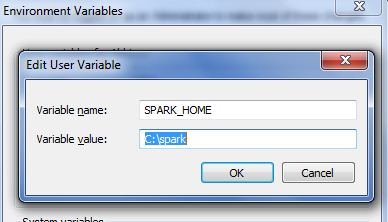
- Set up the PATH for Spark
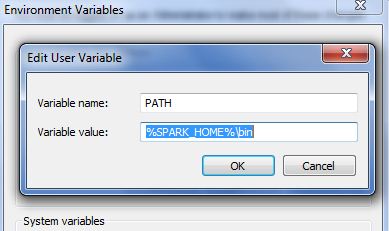
Install WinUtils
WinUtils.exe file can be placed in any location in the system. We can place it in the bin folder of the spark or we can create a separate folder. I am keeping the WinUtils in the Spark bin folder to keep the SPARK_HOME and HADOOP_HOME path same.
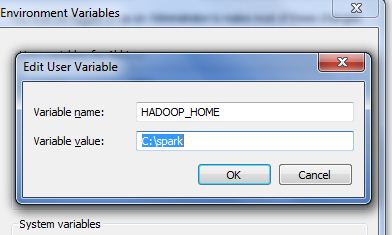
Once you placed the WinUtils in the desired folder, you need to set up the HADOOP_HOME path in the system/environment variable.
Start and Run Spark-shell
1) Go to window à Options à cmd
Type spark-shell to run the spark command line console
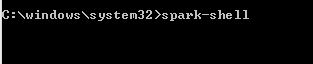
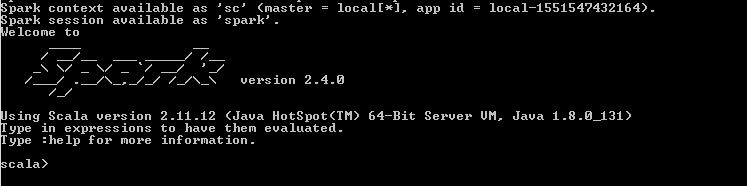
Follow the above steps and enjoy the Spark on the Windows. Share you comments and feedback.
For more Articles on the Hadoop Kindly Follow
Web Page:- Hadoop Tech
Facebook Page:- Hadoop Tech
You Tube Channel:- Hadoop Tech You Tube

