

 In this tutorial, I will share the steps for how you can install MongoDB on the window 8/10 and run the MongoDB as a service on your machine. Follow the below steps to install and up running the MongoDB on your system.
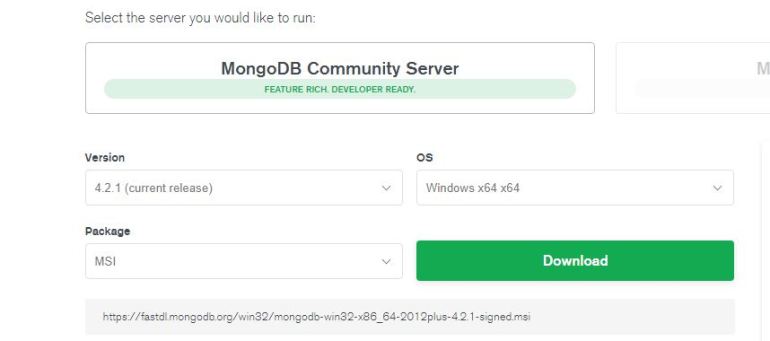
- Download the latest stable version of MongoDB .msi file using the download link. Select version, OS and the package then click on the Download button
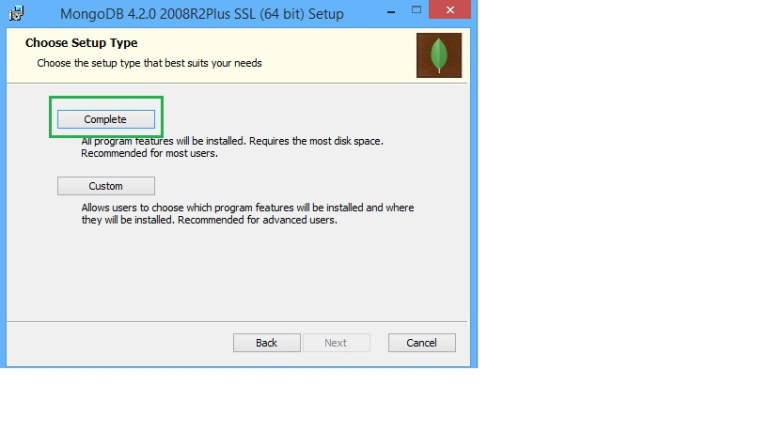
- Double click on the .msi file to start the installation, click on next and click on the Complete/Custom and a new window will pop up
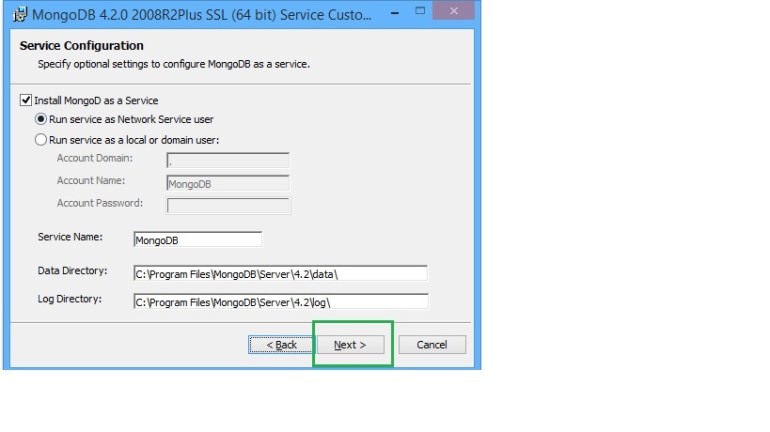
- Log and data file are in the “C:\Program Files\MongoDB\Server\4.2\Service”. Log and the data folders can be changed as per the requirement. Check the box “Install MongoDB as a Service”, to install MongoDB as a service and click on next.
- Click on “Finish” to complete the setup
- MongoDB compass will open on the MongoDB GUI or go to “C:\Program Files\MongoDB\Server\4.2\bin” and click on mongo.exe to open the MongoDB command line.
- Click on “New Connection” and “connect” to the MongoDB localhost
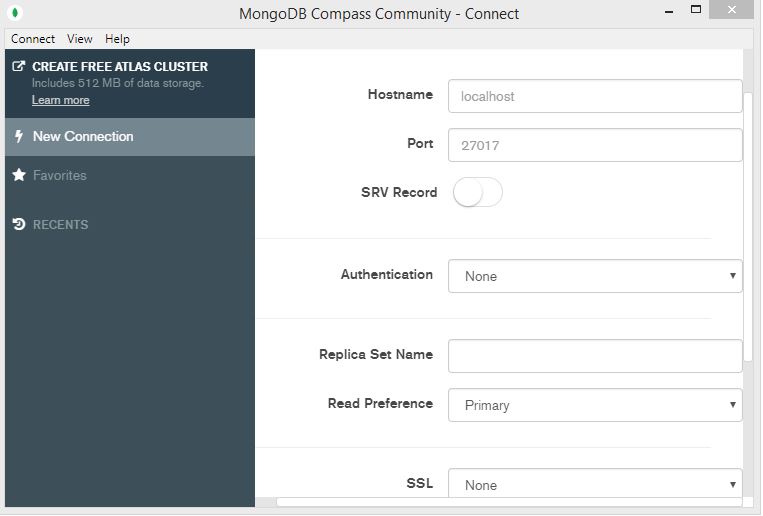
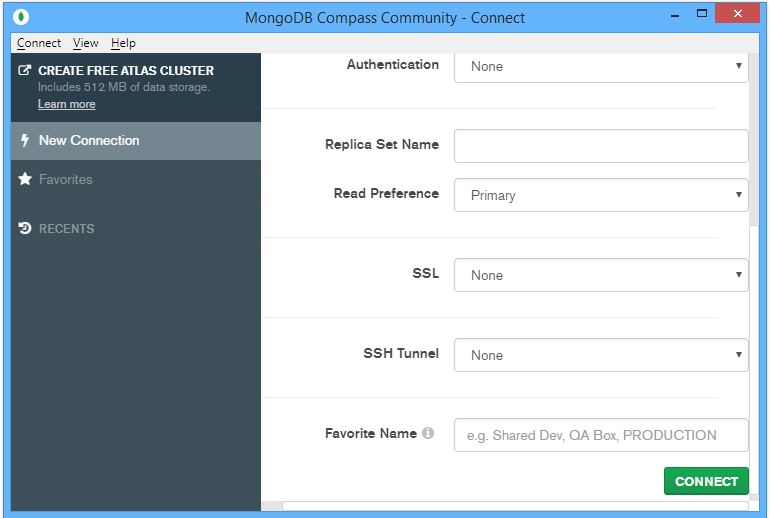
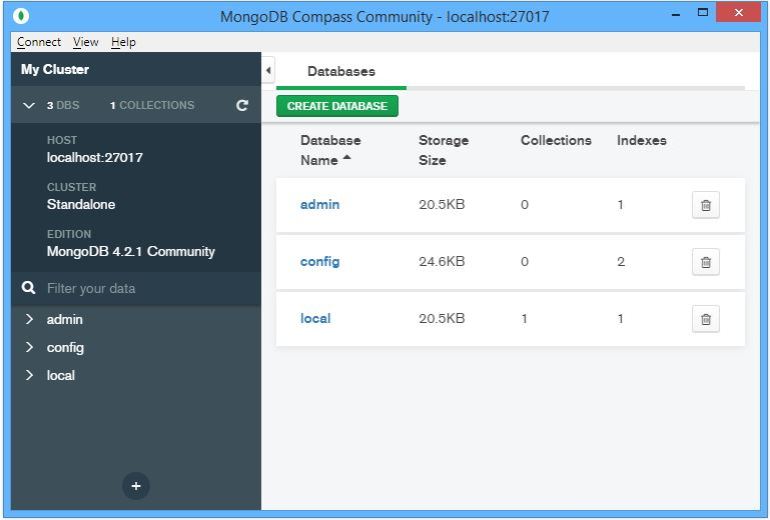
- After connecting to the MongoDB database, you will find the list of the databases available in your localhost MongoDB cluster
In the next post, I will share the basics of MongoDB and its architecture and later we will learn commands to create the database and collection, and perform basic and advance operations using MongoDB.
For more Articles on the Hadoop Kindly Follow
Web Page:- Hadoop Tech
Facebook Page:- Hadoop Tech
 hadooptech